Getting started on CrankMart: a guide for bike shops
Claim your shop page, complete your profile, list bikes and get paid through TradeSafe escrow. A quick visual guide for South African bike shops.
Welcome! Here's how to claim your shop page, list your bikes and get paid through TradeSafe escrow. It only takes a few minutes. CrankMart does not charge any commission on escrow payments.
Download the PDF (one A4 page).
1. Claim your shop page
We've set up a basic page for your shop. Open it and tap Is this your shop? Claim it, and we'll email a 6-digit code to your shop's listed address, then a claim link (valid for 30 days). Already got a claim link from us by email? Just open it.
- Use the email address we have on file. It's locked in for your security.
- Set a password. This creates your shop account and signs you straight in.
- Check your name, phone, website, address and description, then tap Verify & Claim My Listing. Your page now shows as Claimed.
Email not arriving, or not your address? Email support@crankmart.com. Not listed yet? Add your shop.
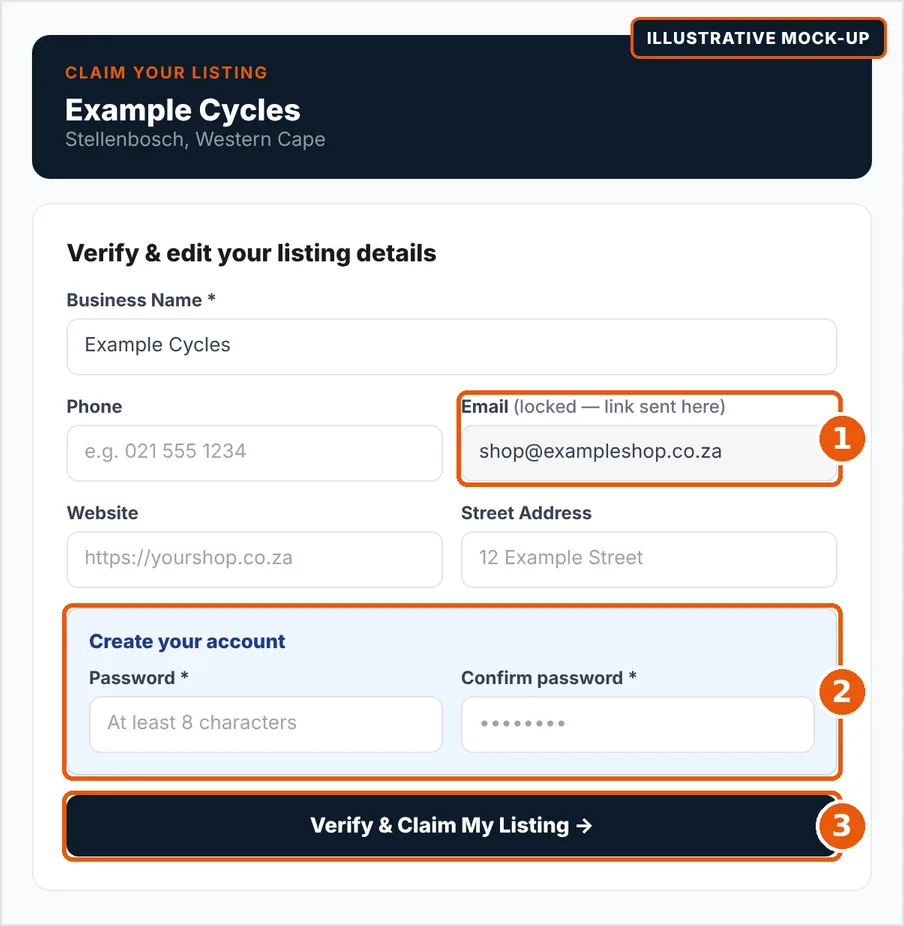
Illustrative mock-up: claim form (example shop)
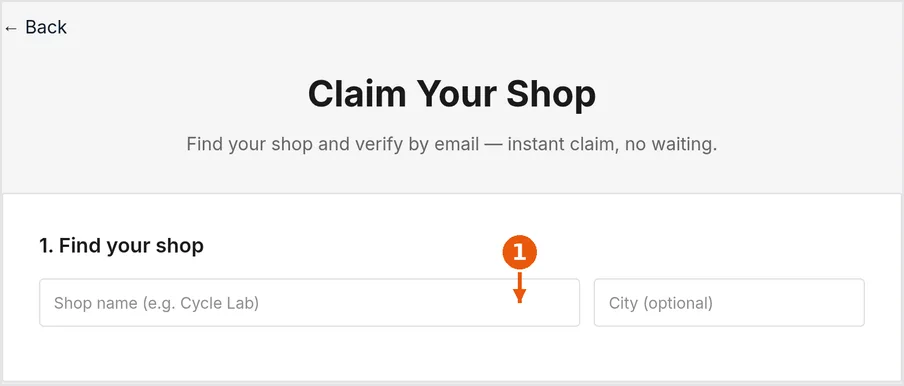
Screenshot: Claim Your Shop. Pick your shop, then verify with a code sent to the email on file.
2. Complete your profile
Go to My Account → Edit my shop profile. First check what we've already filled in, then add the rest so cyclists recognise you at a glance:
- Your logo and a wide cover image (your storefront works well).
- Your opening hours.
- Your services, like repairs, bike fitting or rentals.
Tap Save Changes and your page updates straight away.
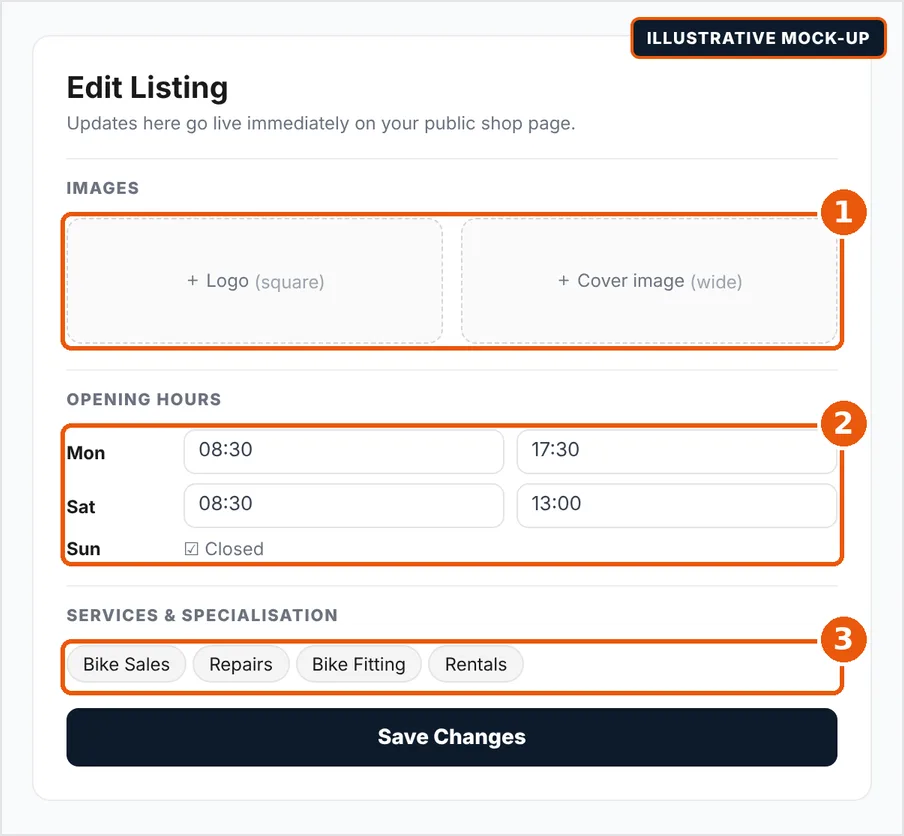
Illustrative mock-up: shop profile editor
3. List a bike yourself
- Tap + Sell at the top of any page.
- Follow 4 short steps: category, details, photos, then location and price.
- Pick what you're selling, e.g. Complete Bikes. Your listing shows straight away, and Buy Now switches on once our team has checked it.
Tip: buyers love the frame size, the gears (the groupset, e.g. Shimano Deore) and when it was last serviced. For e-bikes, add a photo of the display showing the km.
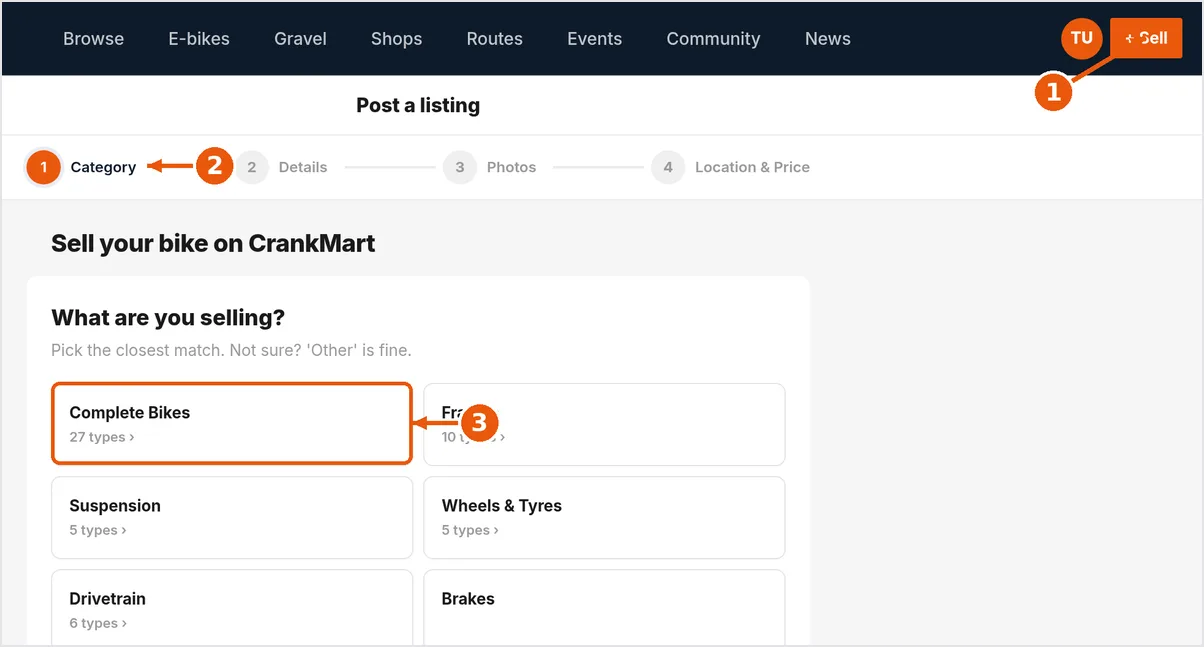
Screenshot: crankmart.com/za/sell
After you're live
You can edit, mark as sold and renew your listings yourself. If you edit a listing, we give it a quick re-check: it stays visible, but buyers can't buy it until our team has re-approved it. To pause or remove a listing, email support@crankmart.com.
4. How escrow works
Escrow means TradeSafe, an independent escrow service, holds the buyer's money until they have the bike. Nobody pays anyone directly.
- The buyer pays into TradeSafe. You ship the bike or the buyer collects it. The buyer then has an inspection window (currently 2 days) to check it. TradeSafe pays you when they accept it, or when the window ends with no issue raised.
- In escrow: money TradeSafe is holding for your sales.
- Released: money paid out to your bank, usually 1 to 3 business days after release.
Available in South Africa. CrankMart does not charge any commission on escrow payments. TradeSafe charges its own escrow fee when a bike sells.
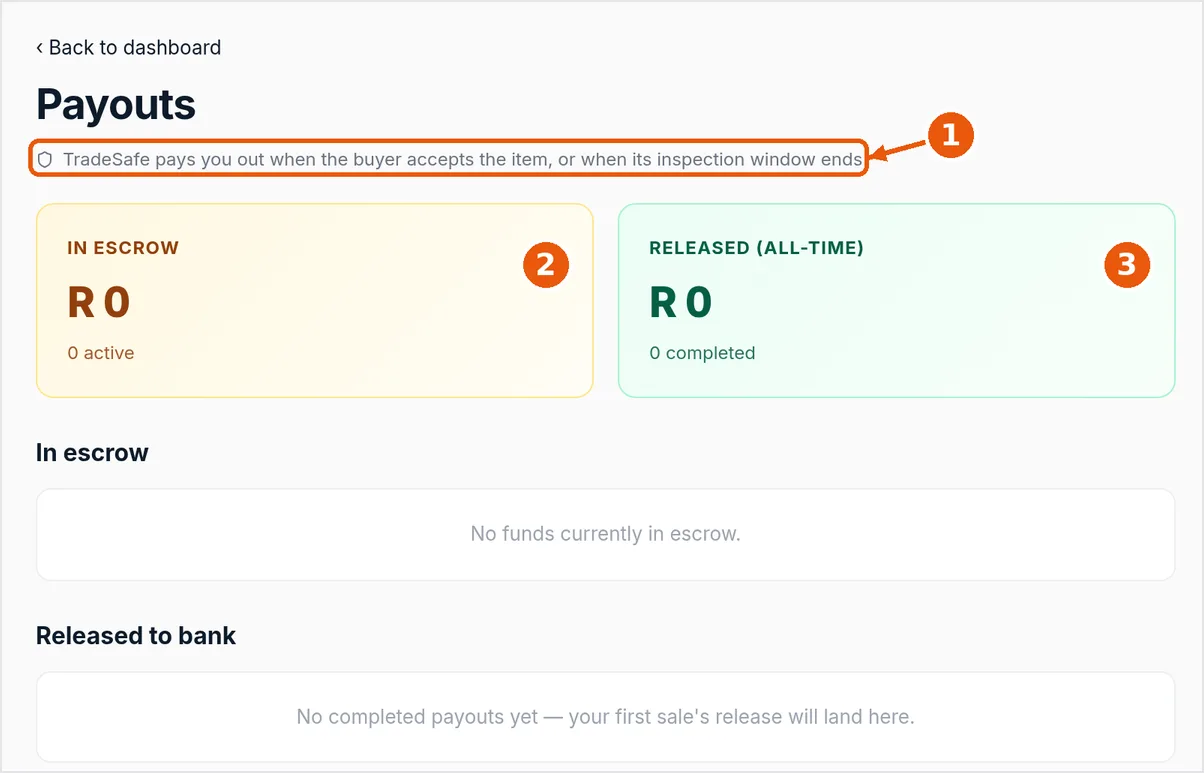
Screenshot: your Payouts page (test account, no sales yet)
5. Set up payouts in your account
Go to My Account → Sell → Set up payouts. This opens Seller verification, so TradeSafe can pay you after each sale. You can list without it, but buyers can only Buy Now once payouts are set up.
- Add your details. TradeSafe needs your ID number (required by law) and a mobile number, so it can SMS you when money is paid out.
- Choose your bank and add your account number and account type. Registered business (e.g. Pty Ltd)? Tick the box and add your registration number; an authorised person's ID is still needed. Capitec Business isn't listed yet; email support and we'll help.
- Accept TradeSafe's seller terms and tap Complete verification.
Your details go straight to TradeSafe. CrankMart only keeps a reference number.
🔒 Never by email. CrankMart will never ask for your bank details by email, chat or phone. If someone does, it isn't us. Need to change your bank account later? Email support@crankmart.com (without the details) and we'll take you through it.
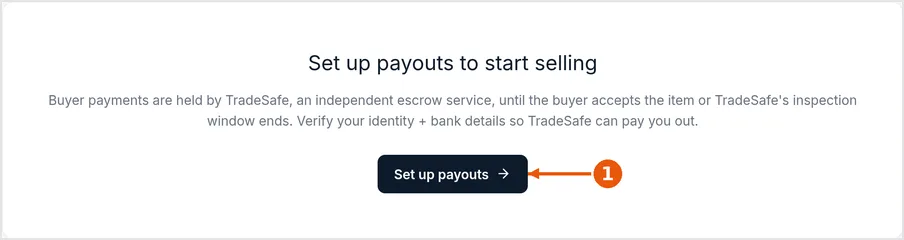
Screenshot: seller dashboard
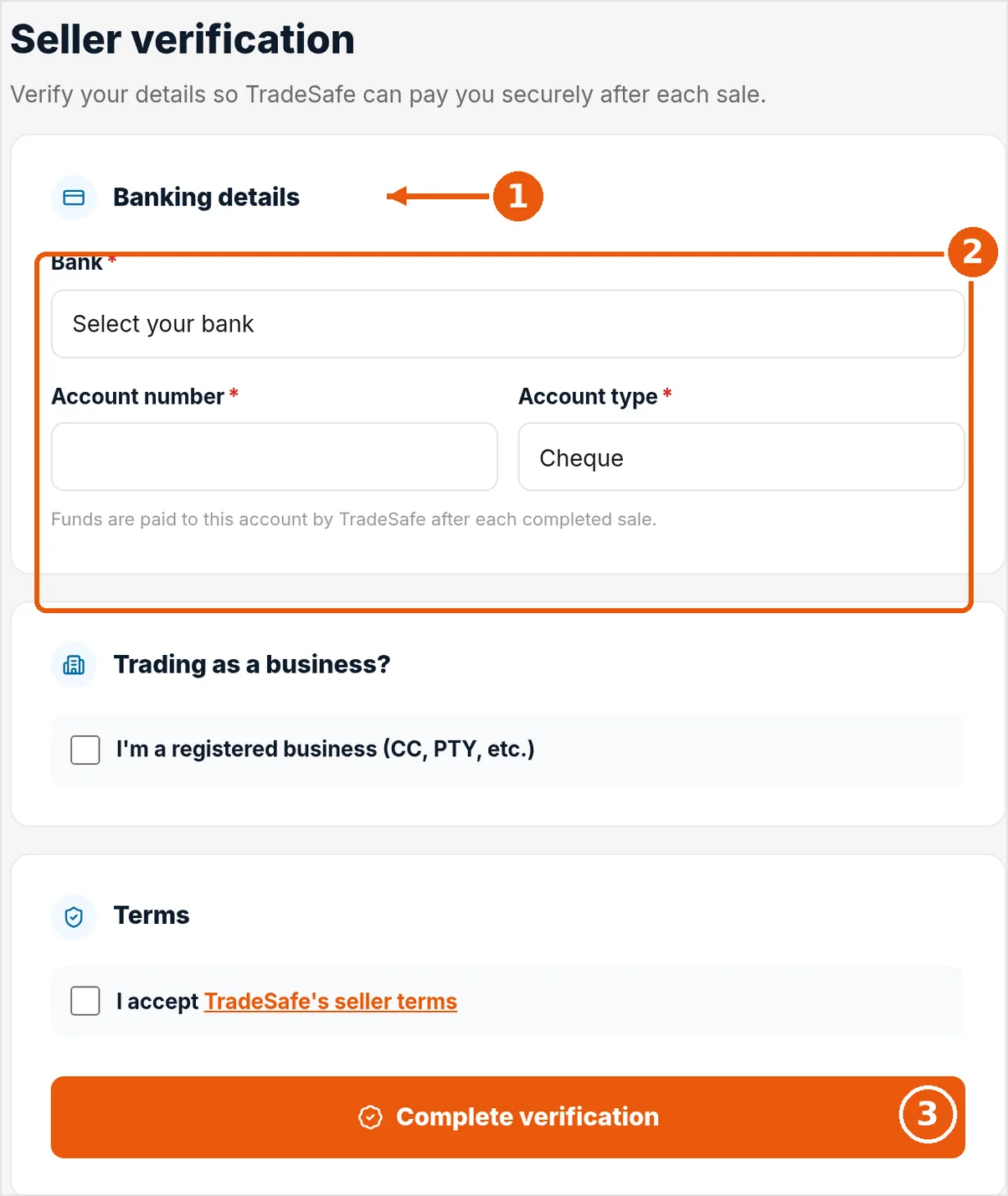
Screenshot: Seller verification (empty form)
6. We're here to help
Stuck, or just want to check something? No question is too small. Email support@crankmart.com and we'll get back to you. Or use our contact form.
Welcome aboard, and lekker selling! The CrankMart Team